Microsoft 365 account setup (first sign-in)
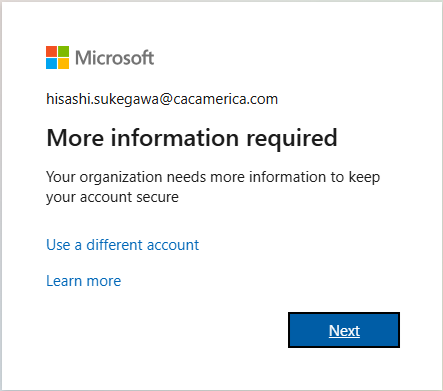
Essentially, when you try signing in to Microsoft 365 services
or applications for the first time, you will be requested to register
MFA authentication and your phone number. Please follow the
displayed guidance.
The following shows the steps of the initial sign-in to your
MS/365 account with the browser on your PC.
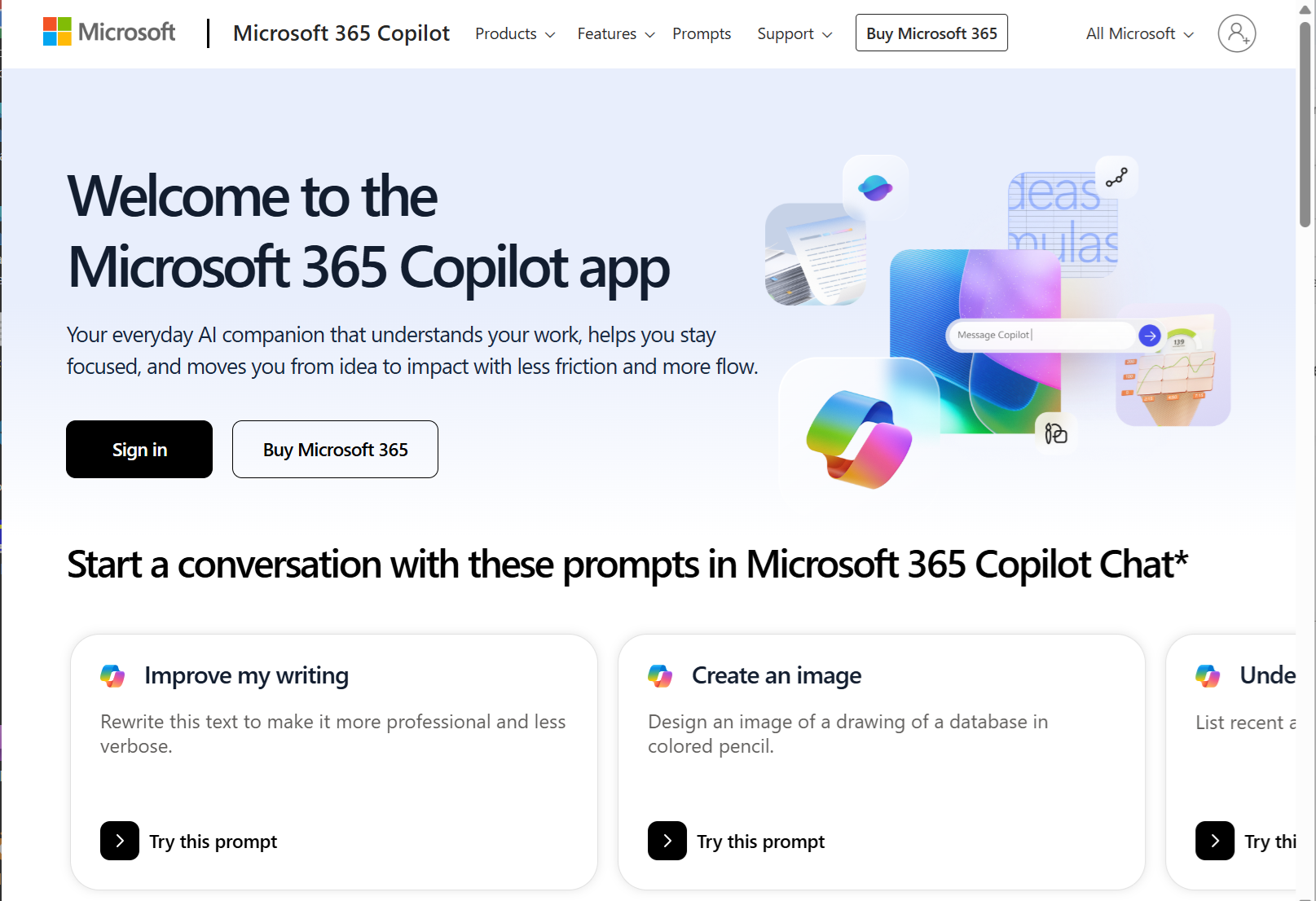
• Open the following page with your browser and click
"Sign in" button.
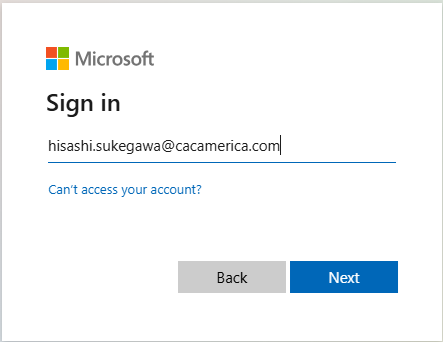
• Enter your @cacamerica.com email address and click
"Next" button.
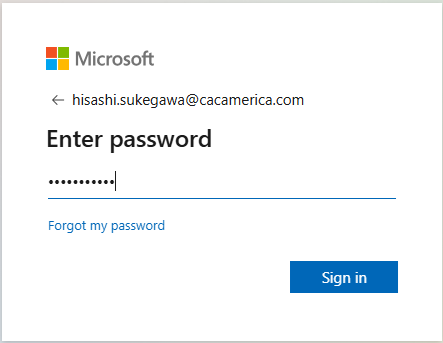
• Enter the password and click "Next" button.
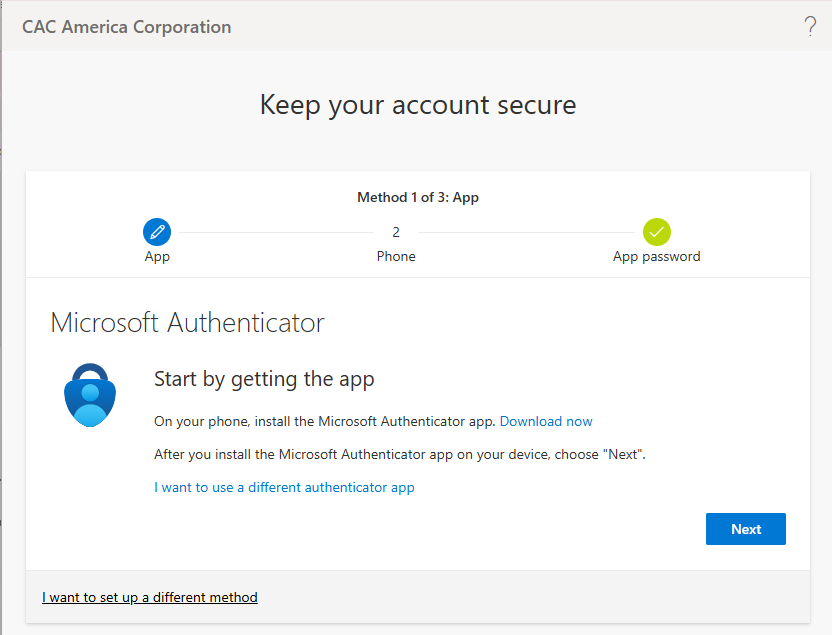
• Install the Authenticator app on your phone and click
"Next" button.
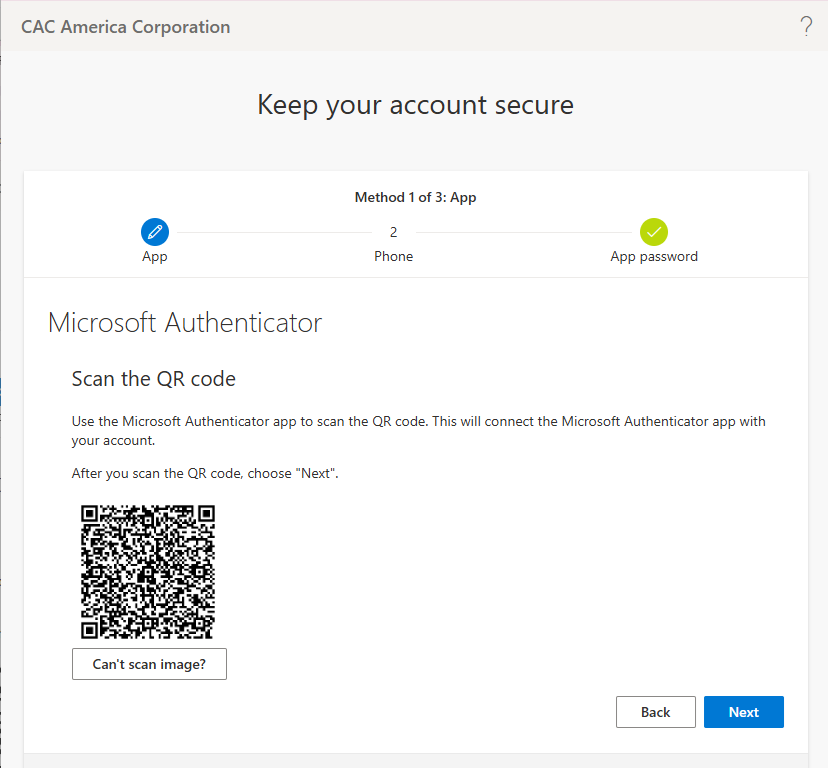
• Keep the QR code page until the scanning by your phone
is completed successfully.
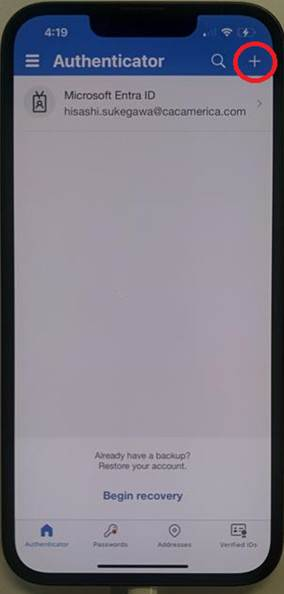
• Open your Authenticator app on your phone and tap the
"+" icon at the top-left corner. (Here is an example using
Microsoft Authenticator on iPhone.)
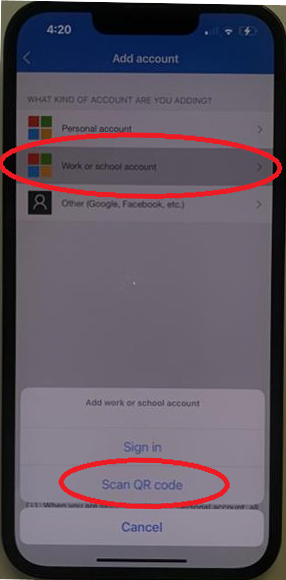
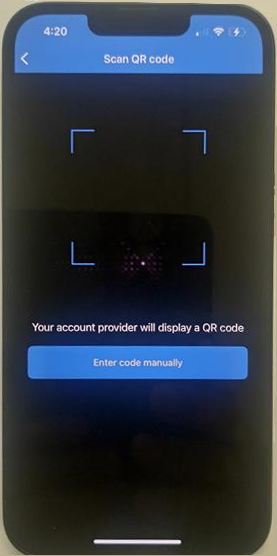
• Tap "Scan QR code" that appears on the bottom when you
tap "Work or school account".
• Scan the QR code on the PC's screen.
• Return to your PC and click "Next" in the QR code window.
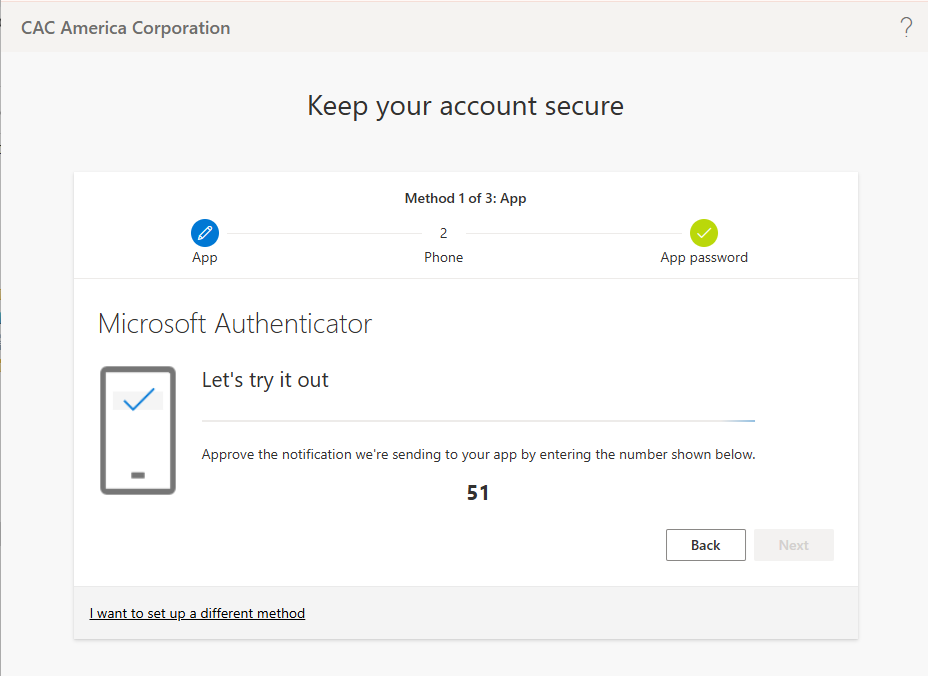
You will then be prompted to confirm the authentication.
Please respond to it on your phone.
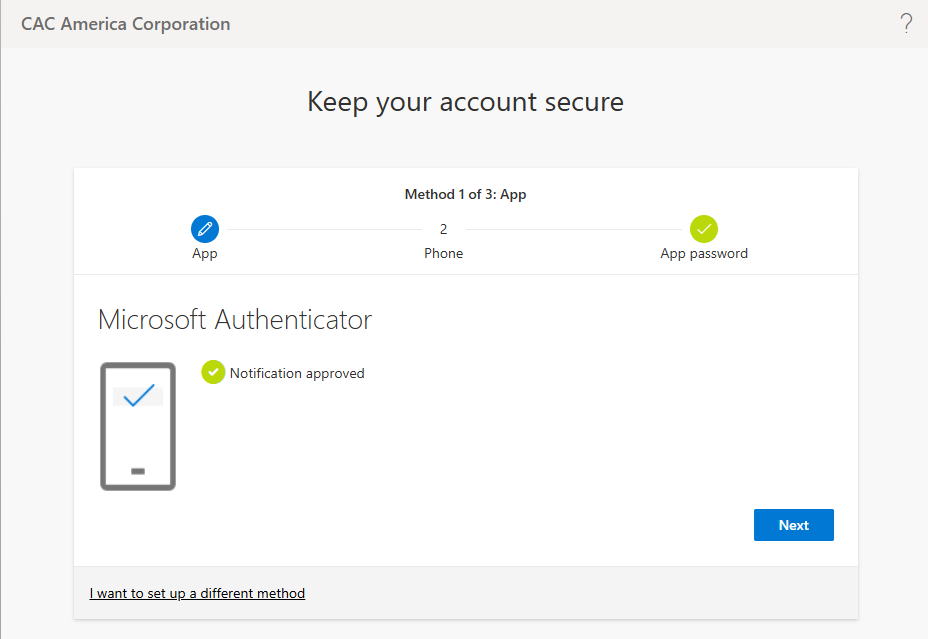
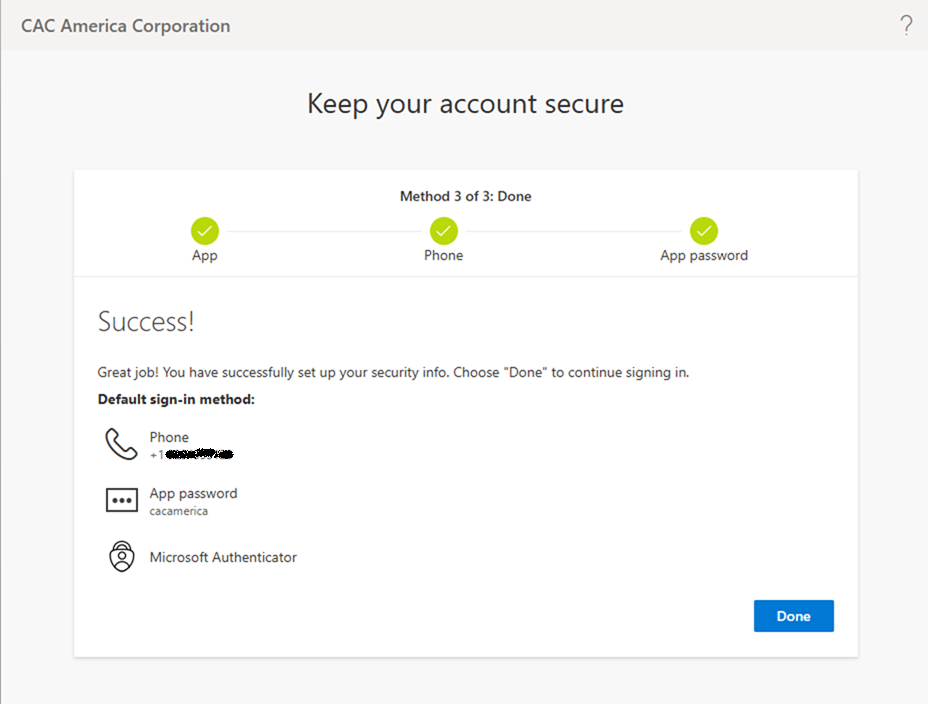
• After confirming the Authenticator, click "Next" button.
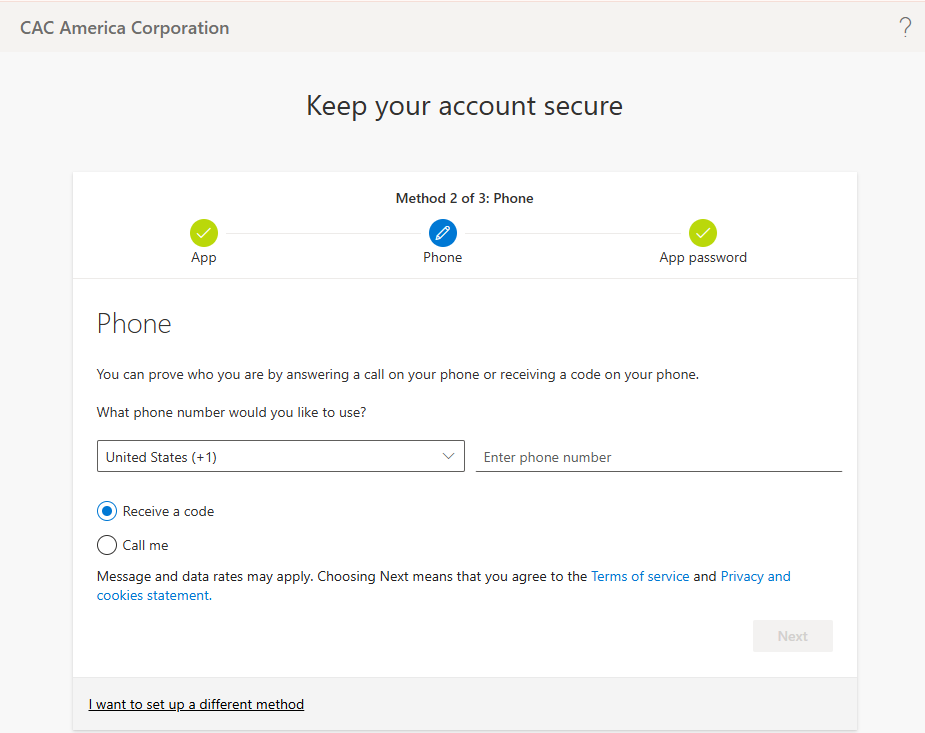
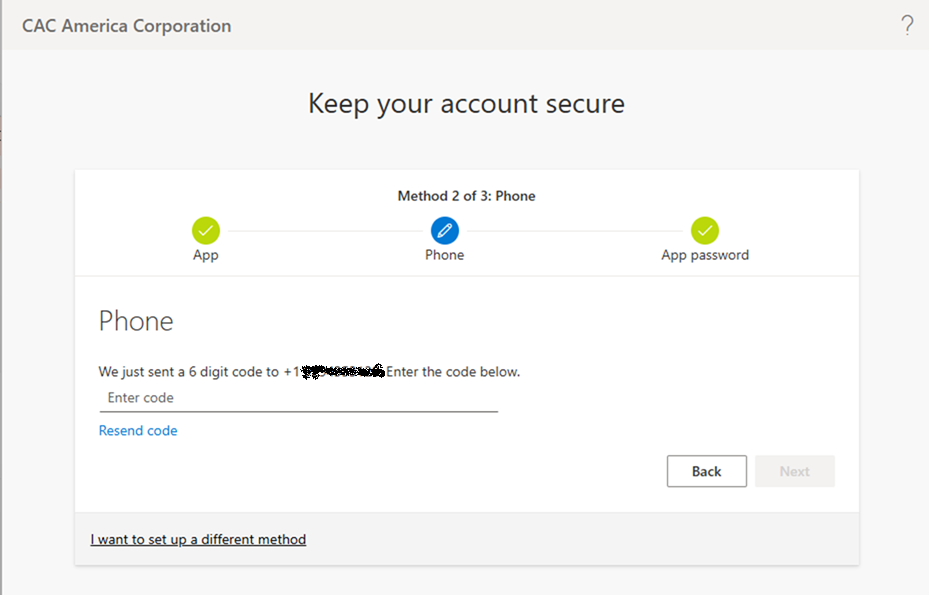
• Register your phone number (as an another sign-in method).
Enter your cell phone number and click the "Next" button.
(The phone number does not need to be of the phone used
to set the authenticator up.)
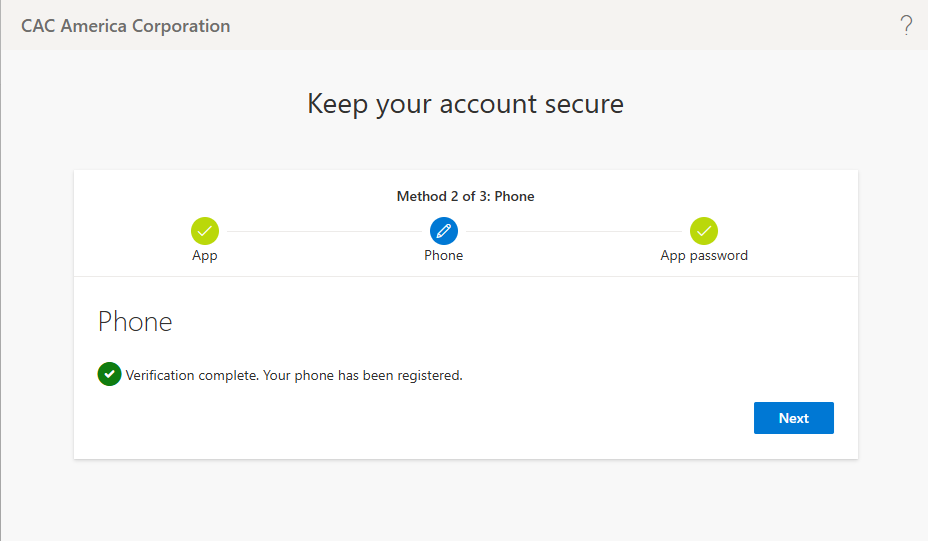
• Enter the confirmation code sent to the phone and click
"Next" button.
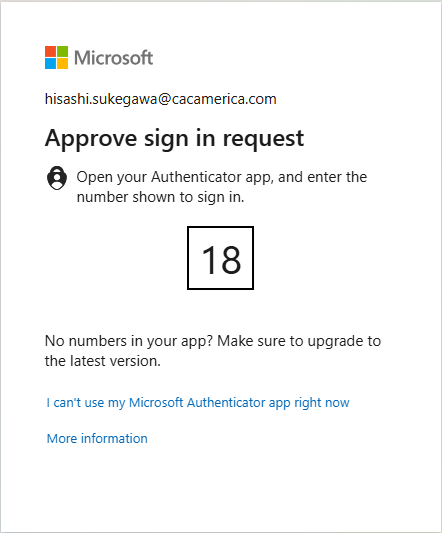
• MFA will be requested for the sign-in. Please respond to it
on your phone.
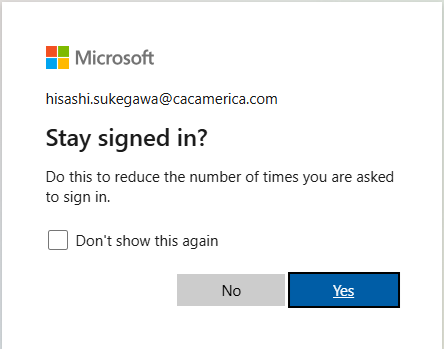
• It would be convenient to click "Yes" if the browser is your
default one.
(You can skip the following steps, but it is strongly
recommended.)
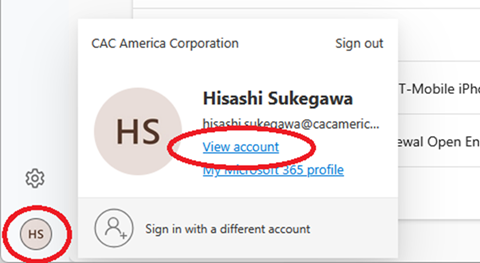
• Click the initial icon in the left-bottom corner of the
opened page and click "View account".
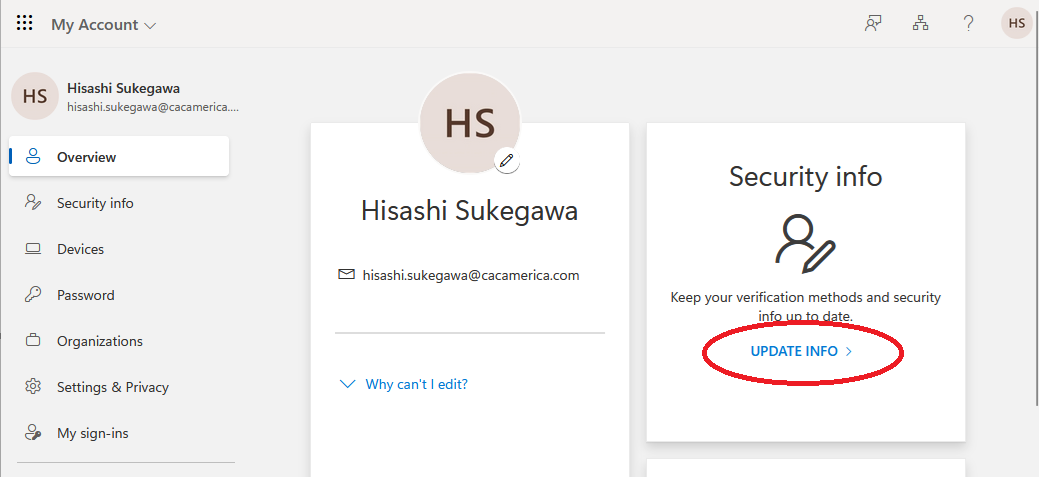
• Click "UPDATE INFO" link.
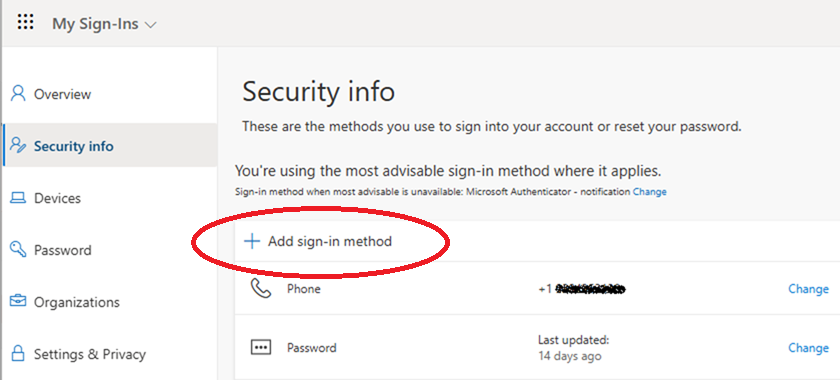
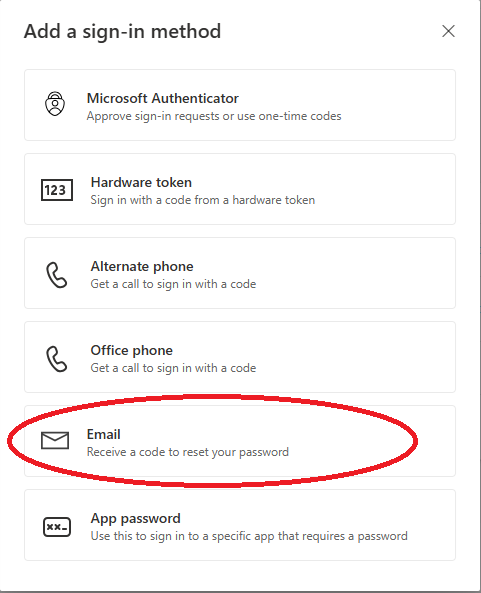
• Click "+ Add sign-in method".
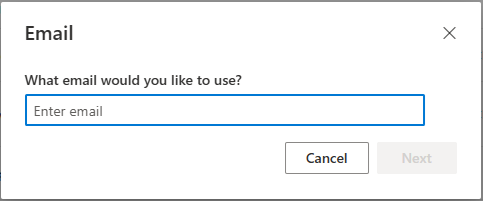
• Enter an alternate email address where you can receive
a message.
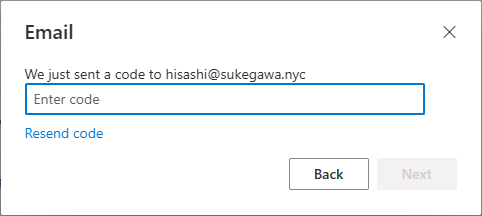
• Enter the confirmation code you received in the alternate
email address.
End.