We have two conference rooms in our office.
- Conference Room:
large room for 6 people with a 60 inch display.
- Conference Room 2:
small room for 2 people next to the pantry.
You need to create an event on the room calendar
in advance when you use any of the rooms.
in advance when you use any of the rooms.
If you do not yet have the calendar for the room you want
to use in your Outlook, follow the below steps to add it.
Or jump to Create a New envent in the room calendar.
to use in your Outlook, follow the below steps to add it.
Or jump to Create a New envent in the room calendar.
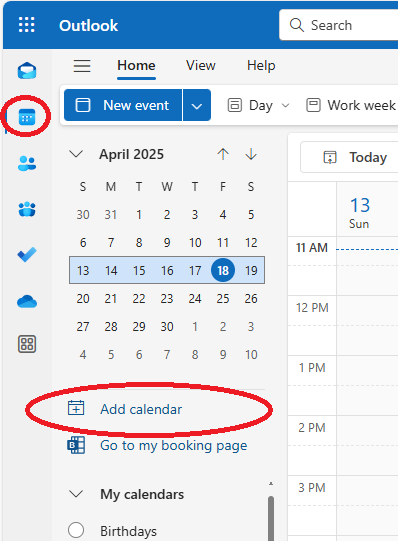
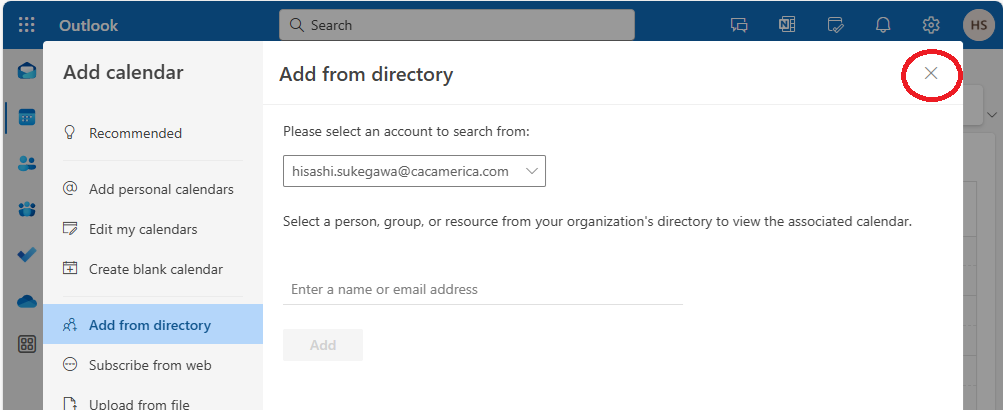
• Click "Add calendar" in the navigation pane"
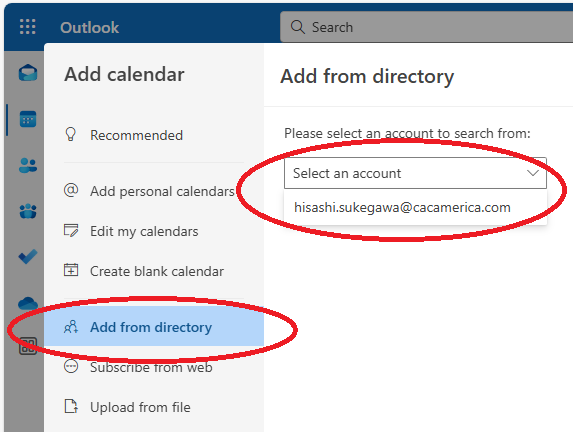
• Click "Add from directory" in the navigation pane, and select
your account from the pull down list in the contents pane.
your account from the pull down list in the contents pane.
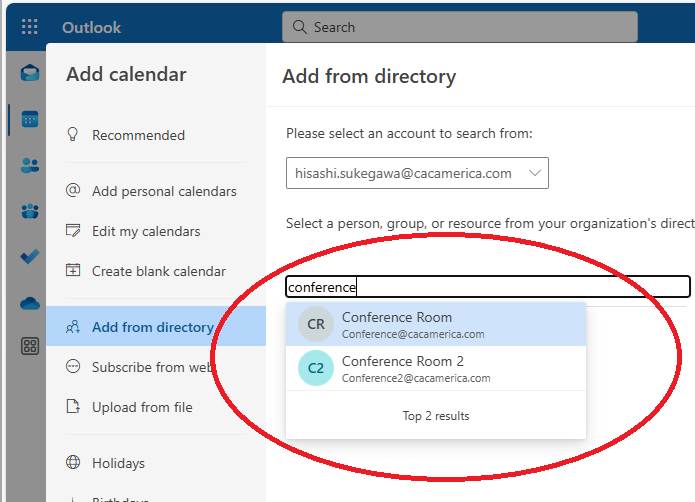
• Select the calendar you want to add,
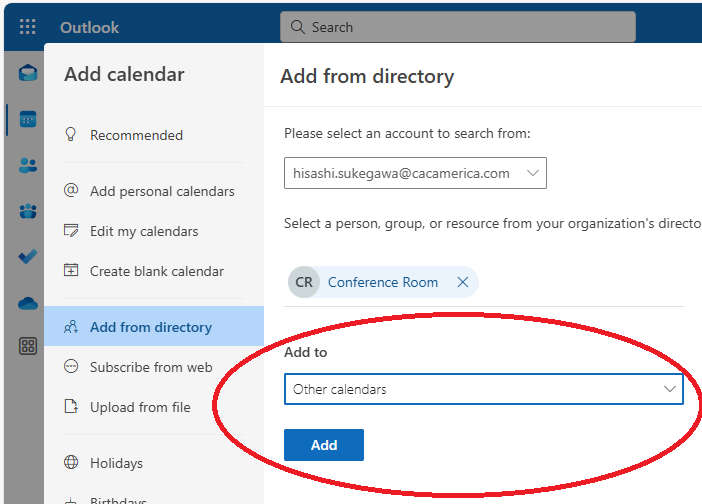
• Select a folder where the calendar should be,
and press "Add" button.
and press "Add" button.
• Click X at the right-top corner.
Create a New envent in the room calendar.
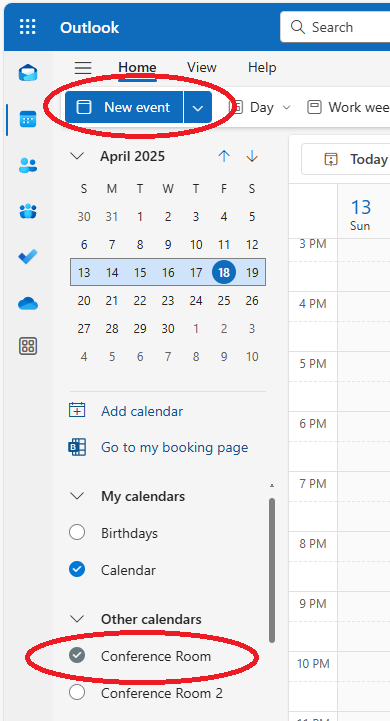
• Select the room calendar you added, check the schdules,
and click "New event" at the top of the navigation pane.
and click "New event" at the top of the navigation pane.
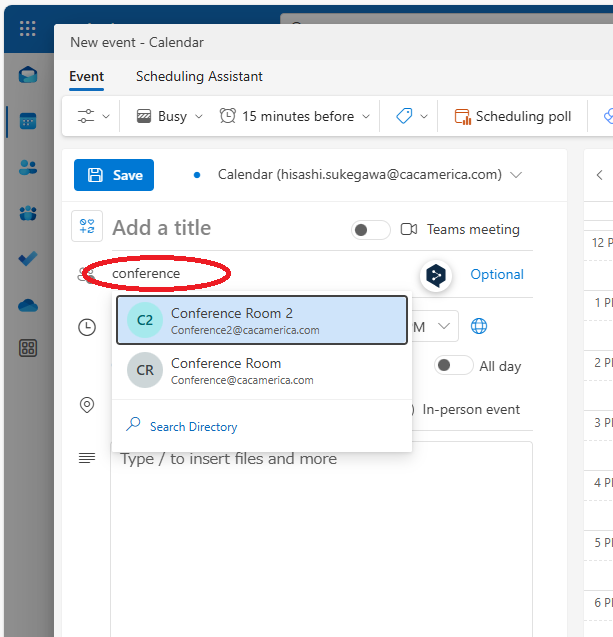
• Search the room calendar in the "Invite attendees" box,
and select it.
and select it.
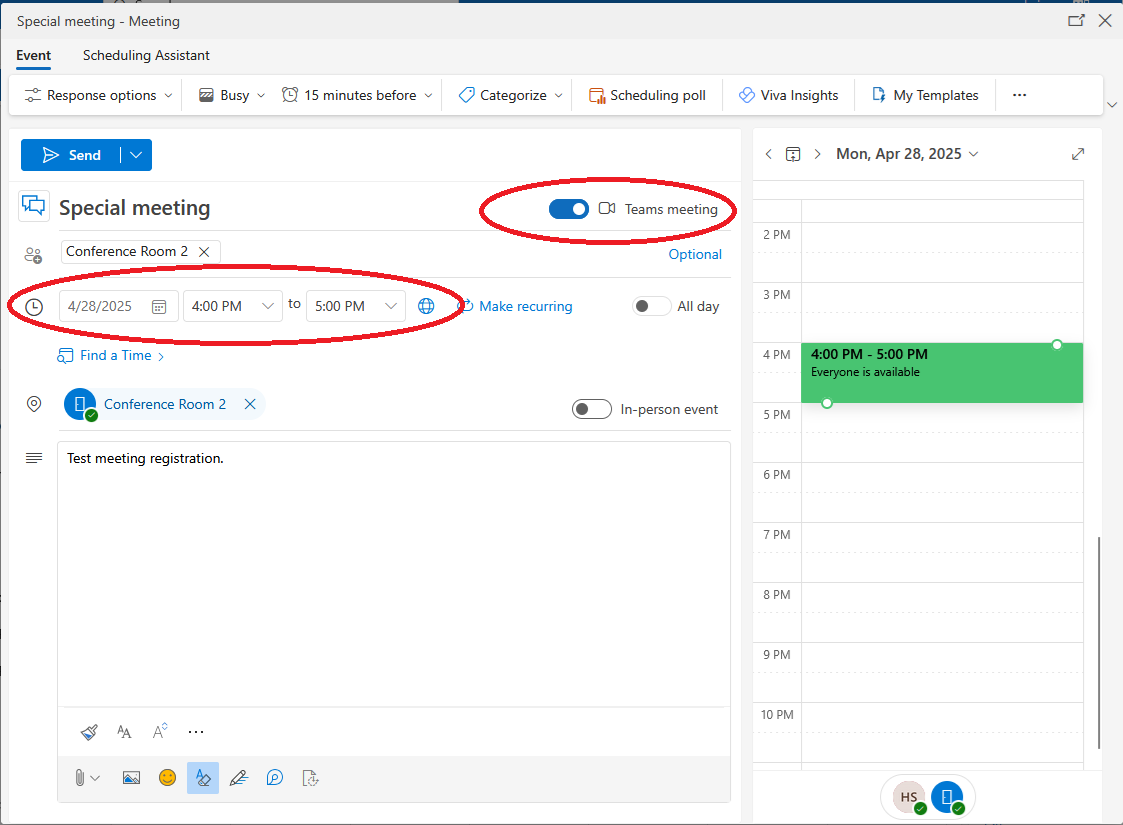
• Complete the form and send it.
- Set the date and time;
- Turn "Teams meeting" off (or keep it on, if needed);
- Enter the title and details;
- Do not delete the room name automatically filled into
the location field;
- Click "Send" at the top-left corner;
(The title and details will not be displayed in the room
calendar.)
- Set the date and time;
- Turn "Teams meeting" off (or keep it on, if needed);
- Enter the title and details;
- Do not delete the room name automatically filled into
the location field;
- Click "Send" at the top-left corner;
(The title and details will not be displayed in the room
calendar.)
• The added item will appear in the calendar
a while later,
and you will receive the notification in your Outlook inbox.
and you will receive the notification in your Outlook inbox.
If the added item does not appear in the room calendar in 5
minutes, please remove the room calender, and add it again.
minutes, please remove the room calender, and add it again.
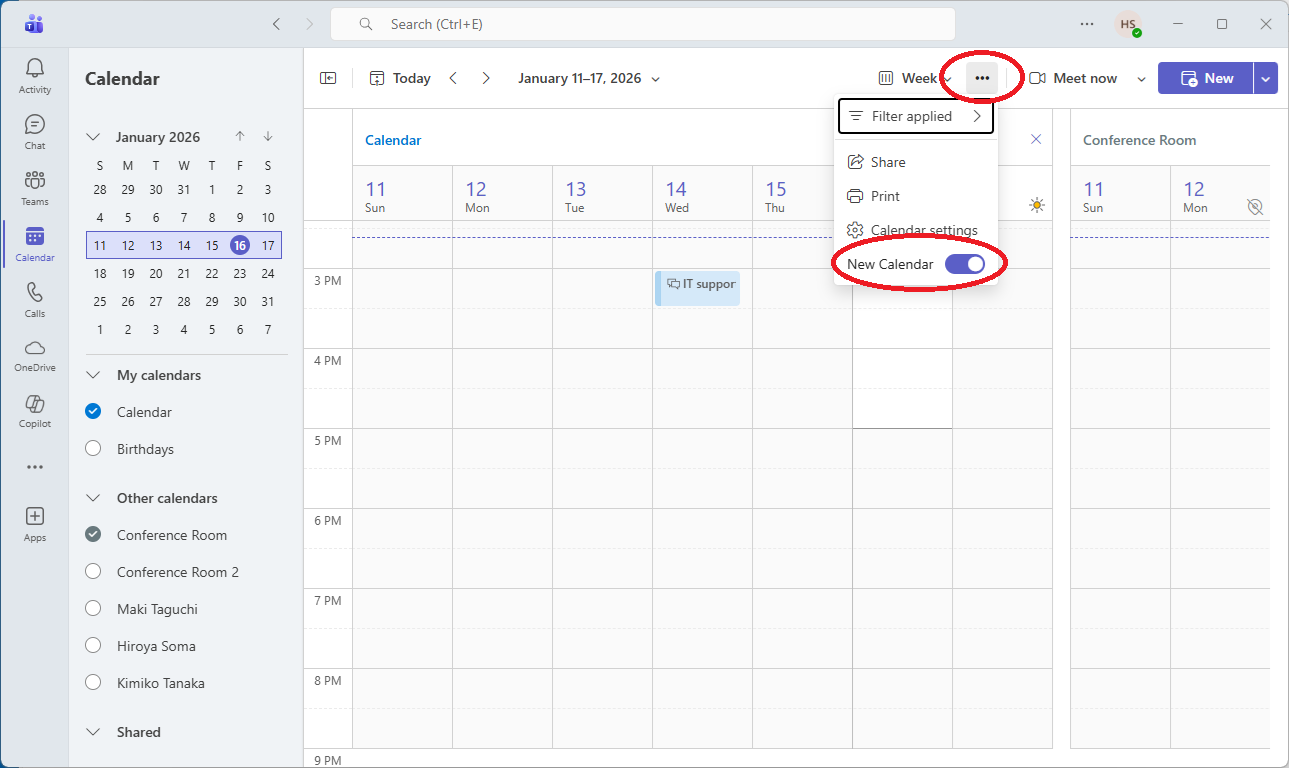
New Calendar in MS/Teams
You can use the room calendars on your Teams after adding
them on your Outlook. It works with only New Calendar on
Windows desktop Teams and Teams on browser (aslo on moble
device), but does NOT work with Teams app on mobile device.
them on your Outlook. It works with only New Calendar on
Windows desktop Teams and Teams on browser (aslo on moble
device), but does NOT work with Teams app on mobile device.
End.